- 1 Why a Google review link makes getting reviews easier
- 2 What is a Google review link?
- 3 How to create your Google review link
- 4 How to create a Google review QR code
- 5 How to share your Google review link
- 6 Review link vs profile link: what is the difference?
- 7 Rules to follow when you ask for reviews
- 8 Why your review link might not work
- 9 Do reviews help your Google ranking?
- 10 Do it yourself or get help?
- 11 Frequently asked questions
- 12 Want more reviews and more customers from Google?
Why a Google review link makes getting reviews easier
Most happy customers do not leave a review, and the main reason is simple: it takes too many steps. They have to search for your business, find the right listing, scroll to the reviews and then work out where to write one.
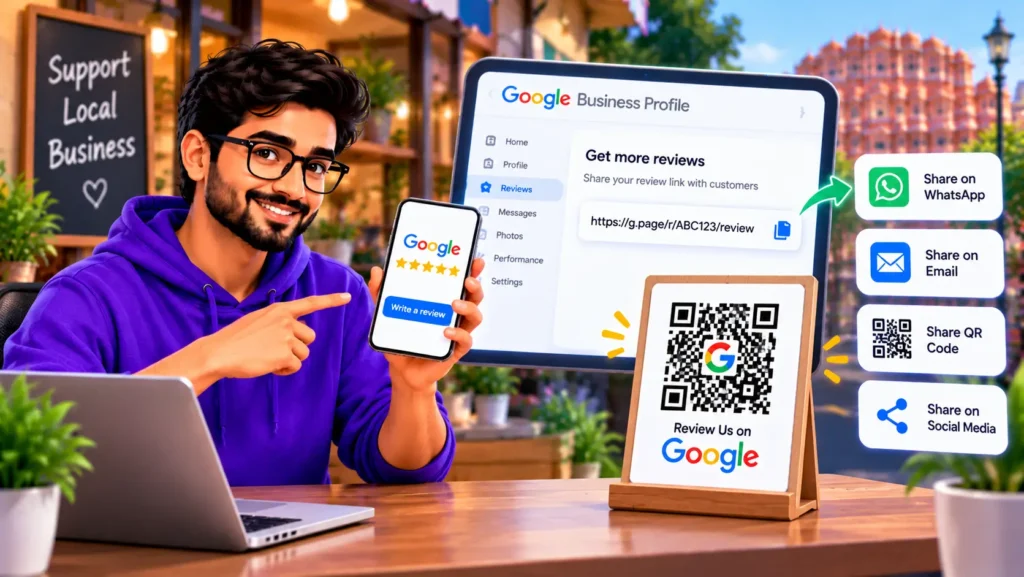
A Google review link removes those steps. The customer taps the link and lands straight on the screen where they can write a review for your business.
In this guide you will learn how to find or create your Google review link, how to make a QR code from it, where to share it, and the rules to follow so your reviews stay safe.
Getting views but few reviews and calls? Book a call with Ankit and find out whether your profile needs ranking work, optimization, or both. Book a call
What is a Google review link?
A Google review link is a web address that takes customers directly to the review screen for your Business Profile. You can send it by WhatsApp, text message, email or social media, or turn it into a QR code that customers scan.
Each business location has its own link. If you manage more than one location, create a separate link for each one.
You may also see this called a Google business review link or a Google My Business review link. They all mean the same thing. Google My Business is the old name for what is now called Google Business Profile.
How to create your Google review link
Google lets you create the link from inside your Business Profile. These are the steps based on Google’s current help page. Button names can change, so if you do not see one of them, look for the nearest match.
- Open your Business Profile. Sign in with the Google account that manages it and go to your profile.
- Select Read reviews.
- Select Get more reviews. You will see a share option.
- Choose how to share. You can copy the review link, share it directly, or use the other options shown.
That is your review link. Paste it somewhere safe, such as a note on your phone, so you can use it any time.
Older guides and some tools call the same feature Ask for reviews. If you see that wording, it is the same idea. Google has changed the labels over time, which is why we recommend checking the help page on the day you do this.
If you cannot find your profile or it does not appear at all, start with our guide on why your business is not showing on Google Maps.
How to create a Google review QR code
A QR code is useful for shops, clinics, restaurants and offices, because the customer can scan it at the counter or from a receipt and review in a few taps.
Google’s help page explains how to get one from the same place as your link:
- Go to your Business Profile and select Read reviews, then Get more reviews.
- Find the QR code in the share options.
- Right-click the QR code and choose Save image as to download it.
- Print it or add it to your materials.
One limit to know: Google notes that review QR codes can currently be generated only on a computer browser, not on a mobile device. If you are on your phone, send the link to yourself and do the QR step later on a computer.
How to share your Google review link
The link only helps if customers actually see it at the right moment. Google suggests several places to put it:
- On receipts or invoices
- In thank-you emails
- At the end of a chat conversation
- As a printed QR code in your store
Google also notes you can send review requests by email, WhatsApp message or Facebook post. In India, WhatsApp is often the easiest. Our guide on WhatsApp Business setup shows how to set it up for your business.
A short message you can adapt:
Hi [Name], thank you for choosing [Business]. If you were happy with our service, we would really appreciate a short review. It takes about a minute: [your review link]
For more message templates and ways to ask, see our full guide on how to get more Google reviews.
Sharing the link but not seeing results? The problem may be somewhere else in your profile. Book a call with Ankit and get a clear next step. Book a call
Review link vs profile link: what is the difference?
People often mix these up.
| Where it takes the customer | Use it for | |
|---|---|---|
| Review link | The screen to write a review | Asking for reviews |
| Profile link | Your Business Profile page | Sharing your business, directions and details |
If you want customers to write a review, always send the review link, not the profile link. To share your profile, use the share option on your profile in Google Maps. The exact steps can differ by device, so check what you see on screen.
Rules to follow when you ask for reviews
A review link is easy to misuse, and Google takes this seriously.
- Never offer incentives. Google states that offering free or discounted goods or services in exchange for reviews is considered fake engagement and is strictly prohibited.
- Ask for honest feedback, not only positive reviews. Send the link to customers in general, not just the ones you think will be happy. Check Google’s current policy on soliciting reviews.
- Never write or buy reviews yourself. Reviews must reflect a genuine customer experience.
- Do not ask for removal of negative reviews in exchange for anything. If a review breaks Google’s rules, report it. Otherwise, reply to it.
For handling difficult feedback, read our guide on how to respond to Google reviews.
Why your review link might not work
- Your profile is not verified or is suspended. Check your dashboard for notices.
- You copied the wrong link. Make sure it is the review link, not the profile link.
- The customer is not signed in to a Google account. Customers generally need to be signed in to leave a review, so a customer without an account may get stuck.
- The link is for the wrong location. If you have several locations, each has its own link.
- Reviews take time to appear. Some reviews can be delayed or held, so a review may not show immediately after being posted.
Do reviews help your Google ranking?
Reviews affect how customers see your business, and Google describes prominence, which includes reviews, as one of the things it uses for local results. It is not the only factor. For the full picture, see our guides on how to rank higher on Google Maps, the Google local pack and Google Business Profile optimization. To see how your business is doing, learn how to check your Google Maps ranking.
Once customers start leaving reviews, turn that trust into enquiries with our guide on how to get more customers from Google Maps. Also keep your listings consistent elsewhere using our guide to free business listing sites in India.
Do it yourself or get help?
Creating the link takes a few minutes. Building a steady system for reviews, replying well and improving your profile takes more. If you want it done properly, see our local SEO services, compare agency vs DIY Google Business Profile optimization, and see our guide to Google Business Profile optimization cost in India.
Frequently asked questions
How do I get my Google review link?
Open your Business Profile, select Read reviews, then Get more reviews, and copy the review link from the share options. Button names can change, so check Google’s help page if you do not see them.
How do I create a Google review QR code?
In the same Get more reviews screen, find the QR code and save the image. Google notes this currently works only on a computer browser, not on mobile.
Is a Google My Business review link the same as a Google Business Profile review link?
Yes. Google My Business is the old name. The review link works the same way.
Can I give customers a discount for leaving a review?
No. Google says offering incentives in exchange for reviews is considered fake engagement and is strictly prohibited.
Can I send my review link on WhatsApp?
Yes. Google lists WhatsApp, email and Facebook among the ways to send review requests.
Does each location have its own review link?
Yes. If you manage more than one location, create a separate link for each one.
Google review link kaise banayein?
Apni Google Business Profile kholein, Read reviews par jayein, phir Get more reviews chunein aur wahan se review link copy karein. QR code bhi usi jagah milta hai, lekin abhi woh sirf computer browser par banta hai. Link ko WhatsApp, email ya receipt par share karein. Review ke badle discount ya gift na dein, Google isse sakht mana karta hai.
Want more reviews and more customers from Google?
A review link is a good start, but reviews work best as part of a strong profile that is visible, complete and easy to contact.
On a call, Ankit looks at your profile and tells you whether you need ranking work, profile optimization, or both, and what to fix first.
Book a call with Ankit and get a clear plan to rank or optimize your Google Business Profile.